Cellonty’s Battle Pack (v2.1.1.0) is a functional mod pack assembled for personal use and shared with those who appreciate my approach to the game.
This pack doesn’t contain hundreds of useless scripts. It includes only the mods that the author considers helpful for effective gameplay. The collection is focused on interface clarity and visual comfort without unnecessary “clutter.”
 Pack Features
Author’s Choice: Only essential mods, tested in battles.
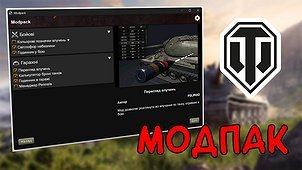
Convenient Installer: Preview support (see how a mod looks before installing), language selection, and automatic detection of the game path.
Clean Installation: Automatic cleaning of mods and res_mods folders to prevent conflicts.
No Bloat: The pack is not overloaded with heavy graphical mods that could interfere with gameplay.
 Mod Pack Contents
Combat Interface & Visuals:
White Outlines: Destroyed tanks and knocked-out tracks are highlighted in white for better visibility.
Battle Hits: View hits in the garage after battle.
Effective Armor: Displays real armor thickness, considering the angle of fire.
Distance to Target: Additional range indicator.
Danger Traffic Light: Visual threat indicator during battle.
Starry Sky: Cosmetic sky texture replacement.
Garage & Statistics:
XVM: Basic set of statistics and interface functions.
Armor Analysis: View tank penetration zones in the garage.
3 Marks: Monitor percentage to mark directly in battle or garage.
Replay Manager: Quick access to battle replays from the client.
Dismantling: Simplified equipment management.
Installation
For proper installation of the pack, follow these simple steps:
Run the installer: Cellonty’s Battle Pack 2.1.1.0.exe.
Select the installation language: Available options include Russian, Ukrainian, English, Polish, and others.
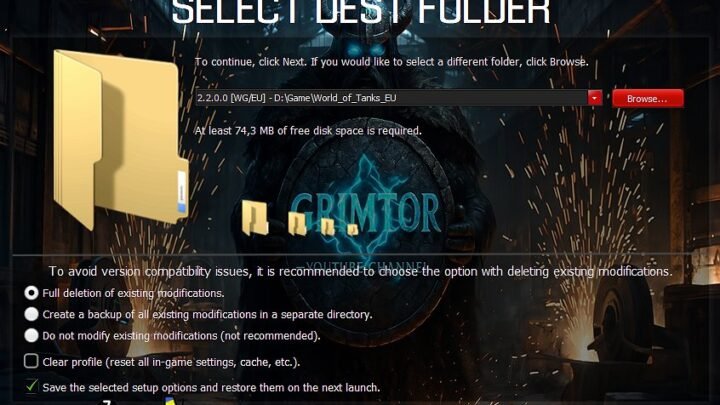
Game path: The installer will try to automatically locate your World of Tanks folder (supports Wargaming and Steam versions).
If the path is incorrect, specify it manually — the root folder of the game where WorldOfTanks.exe is located.
Component selection:
Use “Cellonty’s Choice” to install the recommended set.
Or select “Custom Installation” to mark only the mods you need.
Preview: Click “Show Preview” to see a screenshot of the mod before installing it.
Clean installation: It is recommended to keep the “Clean mods and res_mods folders” option checked to avoid conflicts with other mods.
Install: Click “Install” and wait for the process to complete.
Credits:
Cellonty